Connect apps
Connect apps to ChatGPT Dots and set what they can do
Connect Gmail, Calendar, Drive and other apps to your dot, then pick one of four permission levels to decide what it does without asking you first.
Last verified
On this page
Your dot uses your apps through ChatGPT plugins. You connect an app once, pick how much your dot can do there without asking, and it can read and act in that app from then on.
#The three kinds of connection
Before you connect anything, it helps to know that a dot has three separate kinds of connection, and apps are only one of them.
Connecting one never connects another. Adding your dot to Slack gives you a place to talk to it, and your inbox stays closed until you connect Gmail as an app.
#Connect an app
Your dot starts with every plugin already on your ChatGPT account, so look before you connect. These four steps check what's there and add what's missing.
Connect an app
- Everything under Plugins is an app your dot can use right now.
- Pick one to point a single message at that app.
Image: Zinho Automates 1See which apps your dot already has
Click + in the box where you message your dot. A brand-new account still lists a few built-in plugins here, such as Documents, Spreadsheets and PDF.
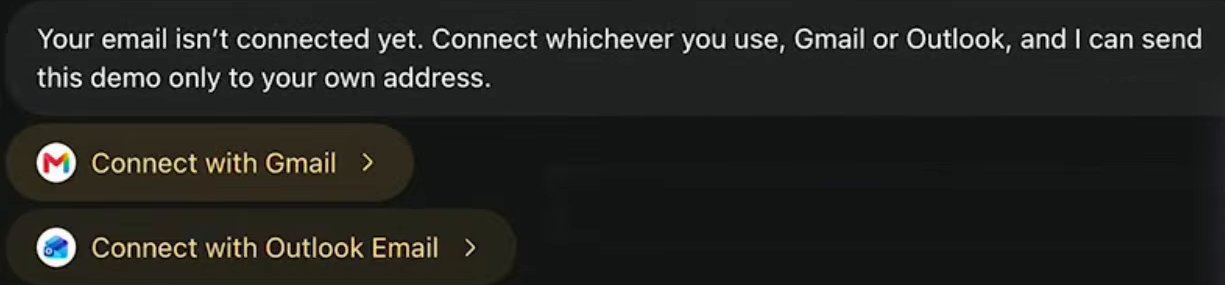
Image: Taha El Harti 2Ask for a job, then click the connect button
If the app you want isn't in that list, ask your dot for something that needs it, such as "Send me a short test email". It tells you the app isn't connected and puts a button in the chat. Click Connect with Gmail, then sign in on the page that opens.
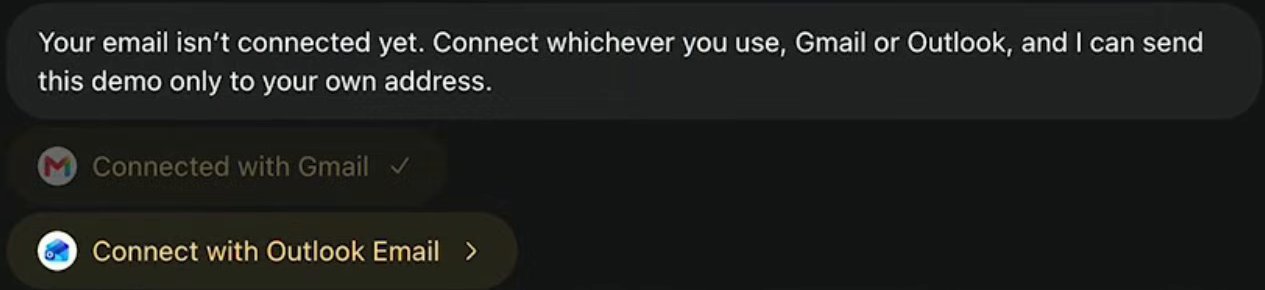
Image: Taha El Harti 3Check the button says Connected
Back in ChatGPT, the button has turned grey and reads Connected with Gmail, with a tick. Your dot picks the job up where it stopped.
- Search for the app by name.
- Three dots: this app is already connected.
- A plus: click it to connect this one.
Image: Skill Leap AI 4For any other app, use the Plugins page
Click the @ icon in the narrow bar at the far left of ChatGPT to open Plugins. Find the app with Search plugins, click the + on its row, and sign in.


If your dot can't find something you know is there, check which account you connected.
#Choose how much your dot can do without asking
Once an app is connected, it has a permission level of its own. To change it, open Plugins, click ... on the app's row, choose Manage, then open Permission.

A newly connected app starts on Allow low-risk actions. Each level lets a little more happen without a question, and the next section lets you try all four.
#Try it: the permission playground
Pick an app and a level, and watch where each request lands.
OpenAI doesn't publish which actions count as low-risk. For certainty about one kind of action, write a rule for it.
#What your dot reads without being asked
A connected app isn't only used when you ask. Your dot looks through it on its own to find ways to help.
- It only reads. Background reading can't send a message or change anything in the app.
- Old connections count. An app you connected to ChatGPT last year is open to your dot from its first minute.
- It remembers what it reads. Taking the app away stops new reading, and what your dot already learned stays in its memory.
To take an app away, open Plugins, click ... on its row and choose Uninstall.
#Check yourself
One question before you move on.
You added your dot to Slack this morning. Can it read your Gmail now?
- Yes. Slack and Gmail are both apps, so one covers the other
- No. Slack is only a place to talk to it
- Only the emails you forward to it in Slack
Show the answer
No. Slack is only a place to talk to it
Messaging your dot in Slack doesn't connect your inbox. Gmail is its own connection, with its own permission level.
Messaging your dot in Slack doesn't connect your inbox. Gmail is its own connection, with its own permission level.
Your apps are connected. Next, decide what your dot has to ask you about.
Can my dot act when something changes in an app, without a schedule?
Yes, where the app supports it. Tell your dot what to watch for, such as new bug reports in a Slack channel, and ask it to confirm what it set up. Give your dot a job covers this.
Can I connect apps on a work account?
Your workspace admin decides which apps are available and what they can do. Dots for workspace admins has the settings.
- Rebuilt as a lesson with the real screens and the permission playground.
- First published.
Get the Dots cheat sheet
One page with the essentials, plus new guides as they are published. Free.
You're in. Your cheat sheet is ready. Download the PDF
Sources
12
- OpenAI docs: Connect computers and apps to your dot learn.chatgpt.com
- OpenAI docs: Meet dots learn.chatgpt.com
- OpenAI docs: Control your dot learn.chatgpt.com
- OpenAI: How we build safety, security, and privacy into dots (the Permission screen) openai.com
- OpenAI Help Center: Dots privacy, security, and safety FAQs help.openai.com
- OpenAI Help Center: Getting started with your dot help.openai.com
- OpenAI Help Center: Managing app permissions in ChatGPT help.openai.com
- OpenAI docs: Tasks and memory learn.chatgpt.com
- OpenAI Help Center: Manage dots in ChatGPT workspaces help.openai.com
- Taha El Harti on YouTube: screenshots of connecting Gmail from the chat youtube.com
- Zinho Automates on YouTube: screenshot of the Add menu youtube.com
- Skill Leap AI on YouTube: screenshot of the Plugins page youtube.com