ChatGPT Dots custom rules: what your dot can do without asking
Your dot reads and drafts freely and asks before it sends, buys or deletes. Add a custom rule in Settings to change that, with one of four behaviors.
Last verified
On this page
Out of the box, your dot reads and drafts without asking, asks before it sends, buys or deletes, and hands a few steps back to you. A custom rule changes that for one kind of action: you describe the action and pick one of four behaviors.
#What your dot does before you add a rule
Start with the defaults, because a rule only changes one of them. With no rules, every action lands in one of three groups.
| Your dot | For actions like |
|---|---|
| Does it | Reading, searching, analyzing, writing a draft, in the apps you've connected |
| Asks you first | Sending a message, sharing a file, buying something, permanently deleting data, installing software from a source it doesn't recognize, signing in with a saved login |
| Hands it to you | Changing a password, moving money between accounts |
#Answer when your dot asks
The middle group is the one you'll meet first. Your dot asks in the conversation, in a sentence that names the action and says where it stops, and you answer by typing.

- To approve, say yes in words that can't be misread. "Yes, send it" beats "uh huh". If your dot turns down a vague yes, it writes out the sentence it needs.
- To decline, say no and what you want kept: "Not today, don't book anything. Just keep the comparison."
- Drafting isn't sending. Asking for a draft reply doesn't give your dot permission to send it.
#The four behaviors
When the same question keeps coming back, or an action should never go without one, that's a job for a rule. Every rule ends in one of four choices, and these are the words on the screen.
| Pick | Your dot | For example |
|---|---|---|
| Take action without asking | Goes ahead with no approval step | Sharing your email address with any online form |
| Take action when you say so | Goes ahead if your request asked for exactly this, and asks otherwise | Posting in a channel |
| Ask before taking action | Stops and waits for your yes every time. A new rule starts here | Sending messages to customers |
| Hand off to you | Never does this itself. It asks you to | Deleting shared project files |
Keep rules few and narrow. A rule that repeats a default is one more thing to maintain, and Take action without asking on "send messages" covers your customers, your boss and everyone else. Name the action and who it's for: "send a calendar invite to someone on my team".
#Add a rule
With a behavior in mind, add the rule in Settings. You need a dot that's set up and at least one app connected.
Add a custom rule
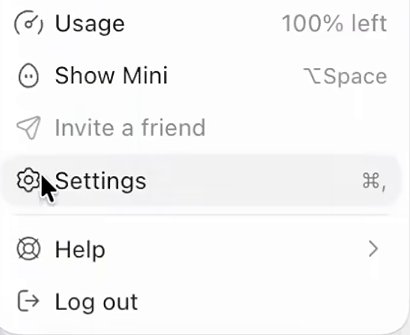
Image: Zinho Automates 1Open Settings
Click your account picture at the bottom left of ChatGPT, then Settings.
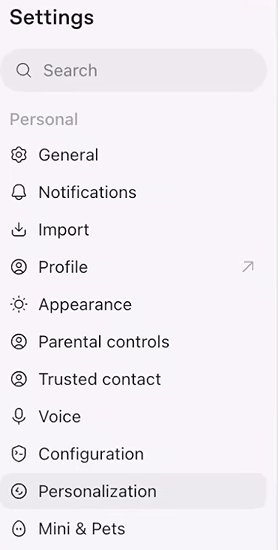
Image: Zinho Automates 2Click Personalization
Settings opens with a list down the left side. Click Personalization.

Image: Zinho Automates 3Click Custom rules
Scroll to the Permissions heading and click the Custom rules row under it. The row names your dot.

Image: Zinho Automates 4Click Add
The Custom rules page lists your rules. Add is at the top right.
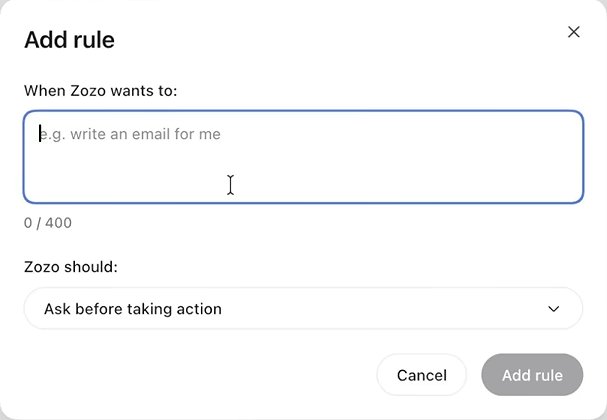
Image: Zinho Automates 5Describe the action
In the box under When and your dot's name wants to:, name one kind of action in plain words: "send an email to a customer", "post in a public channel". You have 400 characters.
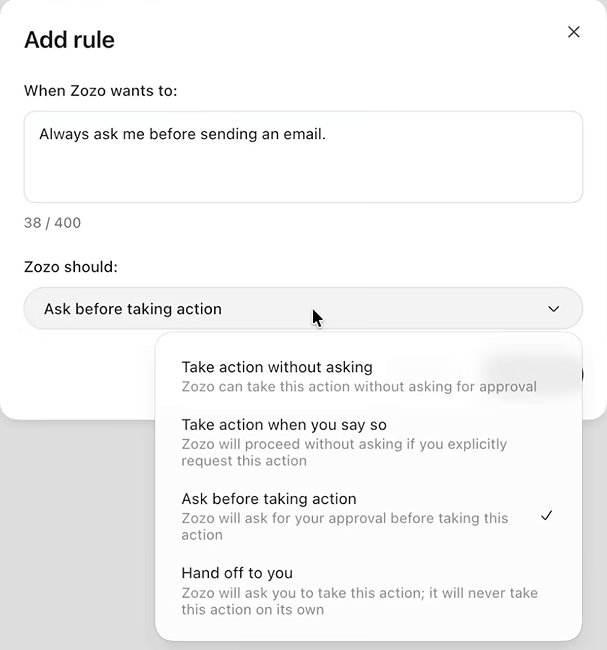
Image: Zinho Automates 6Pick the behavior and click Add rule
Open the menu under your dot's name and should:, choose one of the four, then click Add rule.
- The behavior sits in a menu on the rule's row.
- Default rules: what your dot does where you've set nothing.
- Plugin permissions are separate. Open Plugins takes you to them.
Image: Zinho Automates 7Find your rule in the list
Your rule is now a row on the Custom rules page, and it applies from now on. Your dot tries to follow your rules and can get one wrong, so keep checking work that matters.


On a phone, the Add rule screen has the same two parts and the same four choices. Tap the blue tick to save.
You can also skip Settings and say the rule in the conversation, typed or on a call: "Add a custom rule: always ask me before you send a message to a customer." Your dot rewrites your words into a rule, picks the behavior and posts a Confirm custom rule button. Read both, then click the button to save. Your dot can't change your rules without that click.
#See where a rule applies
A rule is the middle one of three checks an action passes before it happens: the app's plugin permission, your rule, then Auto-review. Pick a behavior and send five actions through to see which check stops each one.
#What a rule can't do
The Slack post and the password change in the simulator never reach your rule: a rule can't connect an app, and it can't override a built-in safety requirement. A rule also can't:
- Remove a required confirmation, such as your OK for each new sign-in with a saved login.
- Switch off Auto-review, which runs on every step that changes something.
- Set a preference. Tone, format and how often you want updates go in the conversation.
- Work where an admin has switched rules off. In Enterprise workspaces they're off until an admin turns on "Use custom rules for dots".
#Check yourself
One question on approvals before you move on.
You approved one email. A minute later your dot wants to send another. What happens?
- It sends, because you already said yes
- It asks again
- It stops working until tomorrow
Show the answer
It asks again
An approval covers one action. For a standing yes, tell your dot who the message goes to, what it should say and when to send it, or add a rule.
An approval covers one action. For a standing yes, tell your dot who the message goes to, what it should say and when to send it, or add a rule.
To practice an approval and a rule with nothing at stake, try this in the simulator.
Can my dot spend my money?
It can buy things with a card you've already saved on a shop's website, and it needs your approval for the purchase. An approval given ahead of time counts only when it covers that specific purchase. Moving money between accounts is always handed back to you.
Where are the default rules?
On the Custom rules page, the Default rules row has a Learn more button. The table at the top of this page lists what those defaults do.
How do I change or remove a rule?
Open Custom rules. Each rule's row has a menu: pick a different behavior there, or edit or delete the rule.
- Rebuilt as a lesson with the real Custom rules screens and a rule simulator.
- First published.
Get the Dots cheat sheet
One page with the essentials, plus new guides as they are published. Free.
You're in. Your cheat sheet is ready. Download the PDF
Sources
10
- OpenAI docs: Control your dot learn.chatgpt.com
- OpenAI Help Center: Dots privacy, security, and safety FAQs help.openai.com
- OpenAI Help Center: Getting started with your dot help.openai.com
- OpenAI: How we build safety, security, and privacy into dots (and its screenshot of Add rule on a phone) openai.com
- OpenAI docs: Connect computers and apps to your dot learn.chatgpt.com
- OpenAI Help Center: Manage dots in ChatGPT workspaces help.openai.com
- OpenAI docs: Manage dots permissions and capabilities learn.chatgpt.com
- Zinho Automates on YouTube: screenshots of Settings, Custom rules and Add rule youtube.com
- Eric Michaud on YouTube: the Confirm custom rule button in a conversation youtube.com
- Pat Simmons on YouTube: screenshot of a dot asking before it enters personal details youtube.com