ChatGPT Dots with Gmail and Google Calendar: setup and recipes
Connect Gmail and Google Calendar to your dot from the chat, see when it sends and when it only drafts, and copy four prompts for briefs, triage and scheduling.
Last verified
On this page
Connect Gmail and Google Calendar and your dot can read your mail, write drafts, check your week and add events. It reads without being asked. It sends an email only when you tell it what to send and to whom.
#What you can hand over
Your dot does three kinds of thing with your mail and calendar. Only the last one leaves your account, and that's the one that waits for you.
So the jobs worth handing over are the ones that end in a summary or a draft: a morning brief, a sorted inbox, a reply ready to send, a free slot found.
#Connect Gmail and Google Calendar
If you connected Google when you created your dot, skip to the recipes. Otherwise connect from the conversation, which takes three steps.
Connect Gmail and Calendar from the chat
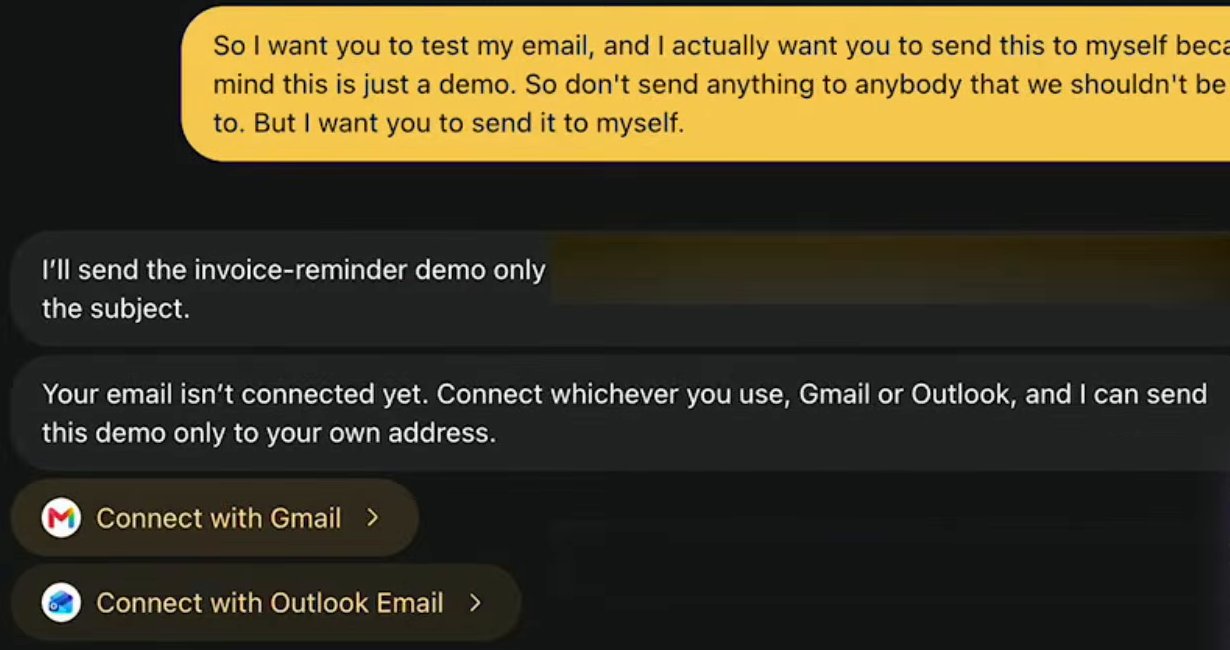
Image: Taha El Harti 1Ask for something that needs your mail
Send your dot the prompt below. It says your email isn't connected and puts two buttons in the chat. Click Connect with Gmail.
PromptSend me a short test email with the subject "Hello from my dot". Send it to my own address only.2Sign in to Google and tick every box
Your browser opens Google. Choose the account whose mail and calendar you want handled, tick Select all on the permission list, and confirm. A box left empty means that app stays switched off.
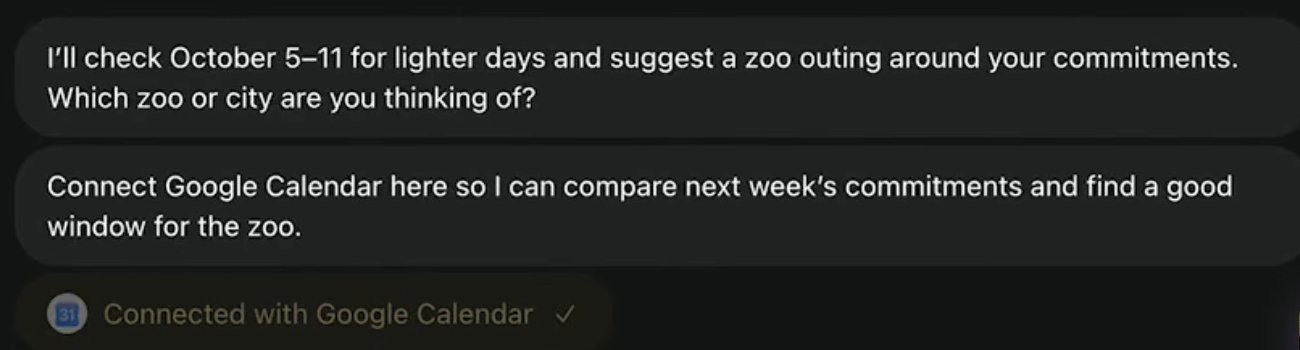
Image: Taha El Harti 3Do the same for Calendar
Back in ChatGPT the button reads Connected with Gmail, greyed out, and your dot carries on. Now ask for something that needs your calendar, click the button it offers, and check it turns into Connected with Google Calendar.


Each app starts on the Allow low-risk actions permission level. To have your dot ask before any change, set both to Read-only actions: how the four levels work.
#What it does on its own, and what waits for you
With both apps connected, what happens to an email depends on what you said. These three cases cover almost everything.
| You say | What happens |
|---|---|
| "Draft a reply to Mara." | A draft is saved in Gmail. Your dot tells you it's "saved in Gmail, not yet sent" |
| "Send this to me at my own address." | It sends. You named the message and the person |
| Nothing, and your dot thinks an email should go out | It asks in the chat first: "May I send them from your connected work account?" |
A yes covers that one email. To be asked every time, add a custom rule: type "sending an email" and choose Ask before taking action.
#Four recipes to copy
Each of these is a job a dot has done with a real inbox or calendar. Swap in the parts in [BRACKETS]. Start with the brief, because it shows you what your dot thinks matters.
Morning brief
One message each morning with today's meetings and the emails that need you.
Every day at 7am [YOUR TIME ZONE], check today's calendar and my unread email and send me a morning brief here. Three sections: Calendar, Email needing attention, Problems to check. One line per item, with a link to the email or event. Leave out newsletters. Don't reply to anything. Run one now, then confirm the schedule.A brief in the chat within a few minutes, then "Set for every day at 7am". Morning briefing shows under Recent activity in your dot's profile.
A first brief looks like this when it arrives. The mail items are blurred here.

- The schedule is confirmed in one line.
- Calendar first.
- Then the emails that need you.
After two days away, ask for a triage instead. Your dot reads everything and replies to nobody.
Inbox triage
Triage my inbox for the last two days. Tell me what I have to respond to, what can wait and what's spam. Don't respond to anything. Think of it like you're the filter: just show me what I should be looking at.A short list of what to open first: who needs an answer, what's about money, what's a warning.
When you know what you want to say and don't want to write it, ask for a draft.
Draft a reply and leave it in Gmail
Draft a reply to [NAME]'s latest email about [SUBJECT]. Say [WHAT YOU WANT TO SAY]. Keep it short and match how I usually write to them. Save it as a draft in that thread and send me the link. Don't send it.A line in the chat such as "The draft for Diana is ready", with a link that opens the draft in Gmail.
For your calendar, booking time works best as two messages: one to find the slot, one to book it.
Find a free slot, then book it
Look at my calendar for next week and find the lighter days. I need a four-hour block for [WHAT IT'S FOR]. Count invitations I haven't answered as busy. Suggest the best day and a backup. Don't change my calendar yet.A best day and a backup, with "These are suggestions; I haven't changed your calendar." Then tell it which one to book.
When you tell it to book, your dot checks the details first. Here a garbled voice request gets the day, the hours and the time zone repeated back before anything is written.

After the "yes", the dot answers "Added:" with a link to the event. To run any recipe on a schedule, give your dot a job shows how.
#Fixes
Most problems with Gmail and Calendar are connection problems. Find yours in the left column.
| What you see | What to do |
|---|---|
| "ChatGPT needs all requested permissions" | Click Try again, then tick Select all on Google's list |
| Your dot can't find a thread or meeting you know exists | You connected the wrong Google account. Connect the one that holds it |
| A Reconnect Google Calendar chip in the chat | Click it and sign in again. The job picks up where it stopped |
| Google shows a permission error on a work account | Ask your Google Workspace admin to approve the ChatGPT app for Gmail and Calendar |
| Messages about emails you don't care about | Tell it what's worth a message: "Only tell me about emails from clients" |
#Check you've got it
One question before you go.
You ask your dot: "Draft an email to Diana with the main findings." A minute later it says the draft is ready. Where is the email?
- In Diana's inbox. A finished draft gets sent
- In your Gmail drafts, unsent, with a link to it in the chat
- Nowhere yet. The text is only in the chat
Show the answer
In your Gmail drafts, unsent, with a link to it in the chat
A request for a draft ends in a draft. Your dot saves it in Gmail and tells you it's ready. Send is still yours to press.

A request for a draft ends in a draft. Your dot saves it in Gmail and tells you it's ready. Send is still yours to press.
Can my dot have its own email address?
Your dot uses the Gmail account you connect, so mail it sends comes from you.
What happens to what it read if I disconnect Gmail?
New reading stops. What your dot already learned stays in its memory until you delete the dot. What your dot remembers.
Does a scheduled inbox check use up my plan?
Talking with your dot doesn't count toward your ChatGPT limits. Work it hands to Work or Codex does. What counts toward which limit.
- Rebuilt as a recipe page with the real connection screens, four recipes and real results.
- First published.
Get the Dots cheat sheet
One page with the essentials, plus new guides as they are published. Free.
You're in. Your cheat sheet is ready. Download the PDF
Sources
13
- OpenAI docs: Connect computers and apps to your dot learn.chatgpt.com
- OpenAI docs: Control your dot learn.chatgpt.com
- OpenAI docs: Tasks and memory learn.chatgpt.com
- OpenAI Help Center: Getting started with your dot help.openai.com
- OpenAI Help Center: Dots privacy, security, and safety FAQs help.openai.com
- OpenAI Help Center: Connecting and managing app accounts in ChatGPT help.openai.com
- OpenAI Help Center: Managing app permissions in ChatGPT help.openai.com
- OpenAI Help Center: Google app data controls FAQ help.openai.com
- OpenAI: Introducing dots (the Gmail draft picture) openai.com
- OpenAI: How we build safety, security, and privacy into dots openai.com
- Taha El Harti on YouTube: screenshots of connecting Gmail and Calendar and the calendar check youtube.com
- Zinho Automates on YouTube: screenshot of a morning brief youtube.com
- WPerfolg on YouTube: a reply saved as a Gmail draft, and the permission screens youtube.com