ChatGPT Space and Pages: how to use your dot in a page
Call your dot into a ChatGPT Space page with an @ mention in a comment, have it build a page from your conversation, and save a schedule that keeps it current.
Last verified
On this page
A page is a document in ChatGPT Space that you, your teammates and your dot can all edit. To put your dot to work on one, mention it in a comment on the page, or ask for the page in your dot's conversation.
#What a page looks like with your dot in it
A page is an ordinary document: a title, text, tables, charts. You find pages in Space, the second icon in ChatGPT's left rail. This one has a dot writing into it right now.

- The pill counts up while your dot works: "Working for 20s", then "Thinking...".
- The FAQ heading is there and the answers aren't yet. They appear as your dot writes them.
Your dot edits the same document you do.
#Ask your dot from a comment
Once a page exists, a comment is the most exact way to ask for a change, because it stays attached to the part of the page it's about.
Mention your dot in a comment
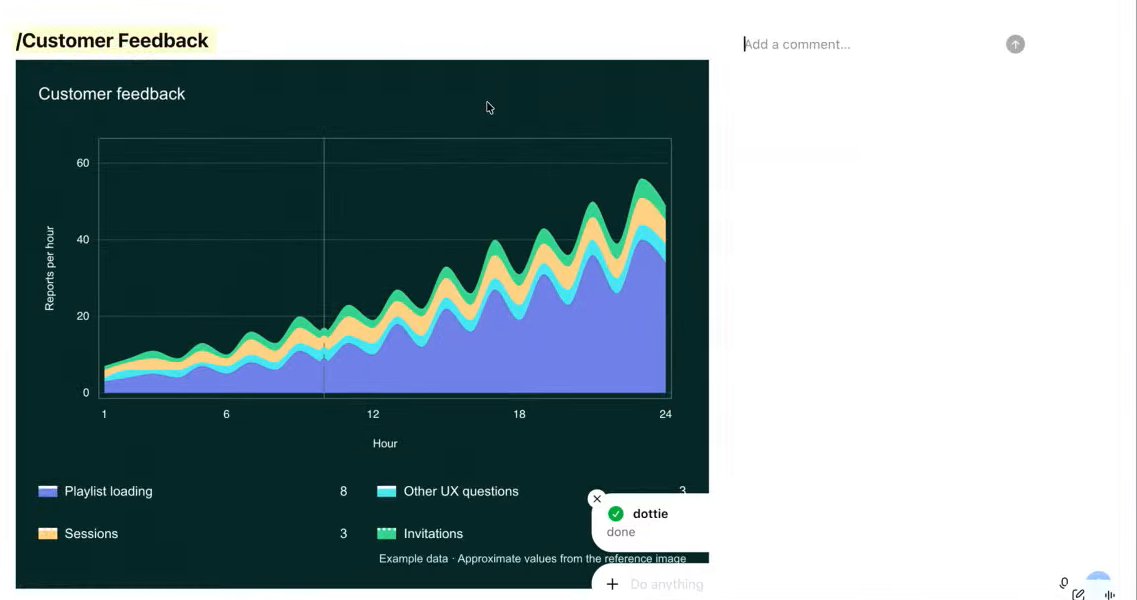
Image: OpenAI 1Start a comment beside the block
Click Add a comment... in the margin next to the chart or paragraph you want changed. For a few words inside a paragraph, select them first and click Comment in the toolbar that appears.
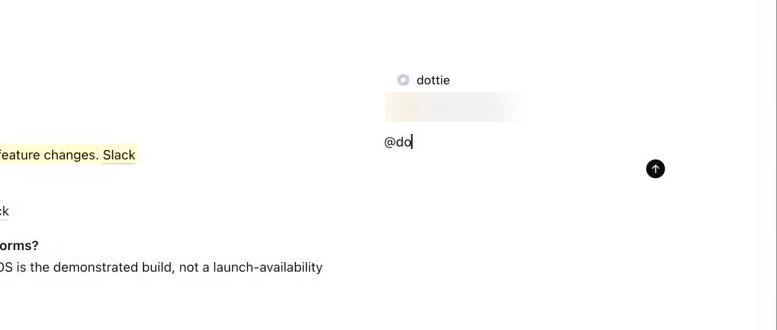
Image: OpenAI 2Type @ and pick your dot
Type
@and the first letters of your dot's name. A picker opens with your dot at the top and your teammates under it. Click your dot, or type@dot.- Once sent, the mention reads as your first name plus "dot".
- Follow up in Reply... and the thread stays together.
Image: OpenAI 3Write the request and send it
Say what you want, as you would in the conversation, and click the arrow. Your dot answers in the thread, with a reaction on your comment or a short reply such as "On it!".
Image: OpenAI 4Wait for done
When your dot finishes, a small notice shows a green tick, your dot's name and "done". Read the change before you move on. Names, dates and sums are worth a second look.
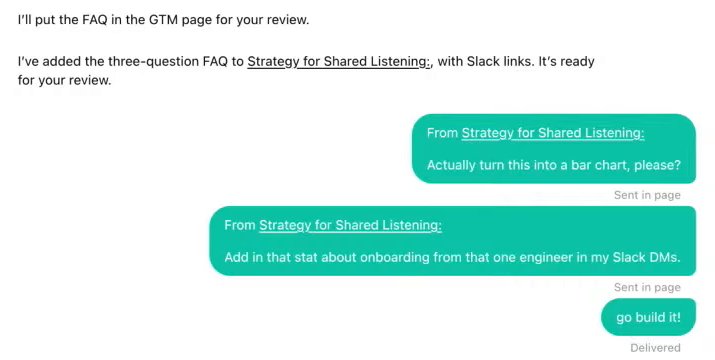
Image: OpenAI 5Find the request in your dot's conversation
Open your dot's conversation. The request you made on the page is there too, labeled Sent in page, next to your dot's report on what it did.


A comment that mentions a teammate is a note to that person. A comment that mentions your dot is a request it acts on, so check the name before you send.
#Pick the place to ask
A comment suits a change to something that's already on the page. For anything else there are two more places to ask. Pick a job and see which one fits.
#Get a page made from the conversation
For a new page, start in your dot's conversation. This owner had a search running and asked for the results in a page.

- The request names the page, what goes in it and what to add later.
- Your dot says what it will do, including tying its hourly check to the page.
- The page opens beside the conversation.
Your dot also makes one page without being asked: a scratchpad of your projects and to-dos, sent as a link card within a day of setup.
#Keep a page up to date
A page like that one stays current because a schedule was saved for it. Ask your dot for the schedule in the conversation, or use the clock at the top of the page.

The clock opens a small chat titled Schedule updates. There's no form: you type the schedule as a sentence, such as "Check our Slack channel for updates every day at 9 AM."
Whichever way you asked, check that the schedule exists:
- Open Scheduled, the clock icon in ChatGPT's left rail.
- Find the task, under your own tasks or in the group with your dot's name.
- After the first run, open the page and read what changed.
#What works in Space today
Space is new, and a few parts aren't there yet.
| You want to | Today |
|---|---|
| Create and edit pages | In a browser or the desktop app |
| Use pages on a phone | Find, read and share. No editing |
| Use Space at all | ChatGPT Pro, Business and Enterprise |
| Use your dot in Space | Pro, a Business Premium seat, or an Enterprise workspace with dots turned on. Check yours |
| Make slides or sheets | Coming soon. A page can hold a table |
Space replaces Library on accounts that have it. Projects stay separate.
#Check you've got it
One question before you move on.
You type "Update this page every Monday morning" into a page's instructions and close it. What happens next Monday?
- The page updates itself
- Nothing, unless a schedule was saved
- Your dot asks you whether to update it
Show the answer
Nothing, unless a schedule was saved
A sentence on a page doesn't save a schedule. A schedule is a saved task, and every saved task shows on the Scheduled page. If yours isn't listed there, ask your dot for it in the conversation.
A sentence on a page doesn't save a schedule. A schedule is a saved task, and every saved task shows on the Scheduled page. If yours isn't listed there, ask your dot for it in the conversation.
#Next step
A page stays current only while its schedule runs. Schedules have a lesson of their own.
Do I need a dot to use Space?
No. Space comes with Pro, Business and Enterprise, and you can work on pages with ChatGPT alone. A dot is separate: on Business, for example, only Premium seats include one.
Who can see what my dot writes on a page?
Everyone who can view the page. That includes details your dot pulled from your email, your files or its memory, so read its changes before you click Share. Sharing a page doesn't share your chats or your ChatGPT memory.
- Rebuilt as a lesson with real screens of a dot working in a page and a chooser for where to ask.
- First published.
Get the Dots cheat sheet
One page with the essentials, plus new guides as they are published. Free.
You're in. Your cheat sheet is ready. Download the PDF
Sources
11
- OpenAI Space docs: Work with agents in Space learn.chatgpt.com
- OpenAI Space docs: Work with pages learn.chatgpt.com
- OpenAI Space docs: ChatGPT Space learn.chatgpt.com
- OpenAI Space docs: Get started with ChatGPT Space learn.chatgpt.com
- OpenAI Space docs: Collaborate in Space learn.chatgpt.com
- OpenAI Help Center: Getting started with Space in ChatGPT help.openai.com
- OpenAI Help Center: ChatGPT Space: sharing, data, and controls help.openai.com
- ChatGPT: Space feature page chatgpt.com
- OpenAI docs: Meet dots learn.chatgpt.com
- OpenAI on YouTube: DevDay 2026 keynote (screenshots of a dot working in a page) youtube.com
- The AI Advantage on YouTube: screenshots of a page made by a dot and the schedule button youtube.com