Let your ChatGPT dot use your own computer
Connect your computer to your dot in the ChatGPT desktop app: click Allow, confirm, and it can work with your local files and apps while the computer is awake.
Last verified
On this page
To let your dot work on your own computer, open its profile in the ChatGPT desktop app on that computer, click Allow next to the computer's name, and confirm. From then on your dot can use the files and apps there whenever the computer is awake.
Tick these off before you start.
#Cloud or my computer?
First decide whether the job needs your computer at all. Pick a job and see where it belongs.
If your jobs all landed in the cloud, you can stop here. Otherwise, connect in one of two ways.
#Connect during setup
If you're creating your dot in the desktop app, the last setup screen does it for you. The switch beside Your local computer is already on, so leave it and click Continue.

A green notice at the top of the conversation confirms it: "This computer is connected to your dot". Turn the switch off first if you'd rather connect later.
#Connect later, from your dot's profile
If your dot already exists, connect from its profile, in the desktop app on the computer you want it to use.
Allow access to this computer
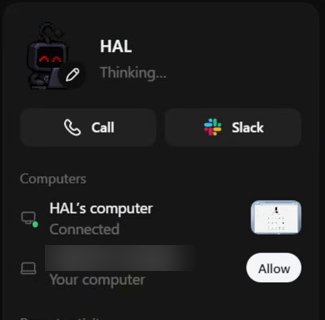
Image: Eric Michaud 1Open your dot's profile and click Allow
Click your dot's name or picture at the top of the conversation. Under Computers, find the row labeled Your computer and click Allow.
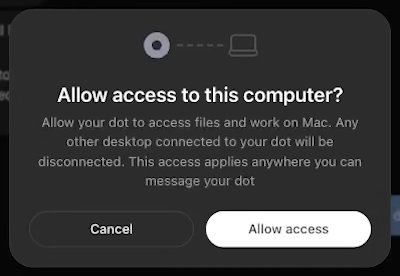
Image: Futurepedia 2Read the dialog, then click Allow access
The dialog tells you three things: your dot can open and change files here, any other computer you connected is disconnected, and the access holds wherever you message your dot. Click Allow access.
- Nothing to click.
Image: Futurepedia 3Wait a few seconds
The dialog changes to Connecting and closes by itself after three or four seconds.
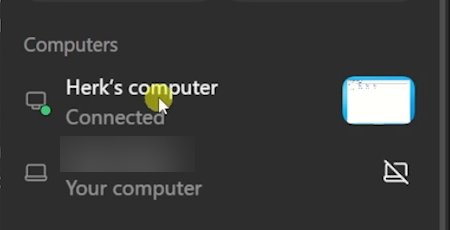
Image: Nate Herk 4Check the row
Where Allow was, there's now a small crossed-out laptop. That icon means connected. If you don't see it, point at the row.


#Check it worked
With the computer connected, ask for something small that only it can answer.
List the files in my Downloads folder. Don't change anything.Your dot starts a separate task for the job, which shows as a chip in the conversation, and comes back with the names of files that are really in that folder.
#When your computer is asleep
The connection only works while the computer does. When it's off, asleep or off the network, its row in the profile says so.

- Offline: your dot can't reach this computer right now.
- The cloud computer stays Connected whatever yours is doing.
- Offline doesn't disconnect anything. Wake the computer and the connection is back.
- A job that needs your computer waits for it. It doesn't move to the cloud by itself.
- Meanwhile your dot can still chat, use your connected apps and work in the cloud.
#Common mistakes
If Allow isn't in your dot's profile, you're probably in a browser.
A computer linked to Codex still needs connecting to your dot.
#Check yourself
One question before you move on.
Your work laptop is connected. At home you open the desktop app on your own Mac and click Allow there. What happens to the laptop?
- Nothing. Your dot now has both
- It's disconnected. Your dot has the Mac
- The Mac is refused until you disconnect the laptop
Show the answer
It's disconnected. Your dot has the Mac
The dialog says so before you confirm: "Any other desktop connected to your dot will be disconnected." To switch back, click Allow on the laptop again.
The dialog says so before you confirm: "Any other desktop connected to your dot will be disconnected." To switch back, click Allow on the laptop again.
#Next step
Your dot can reach your computer. Now try talking to it out loud.
Does local work use my Work or Codex usage?
Yes. Jobs on your computer run as Work or Codex tasks, and they count toward your plan's Work and Codex usage. Talking to your dot doesn't count toward your ChatGPT usage limits. Usage limits has the rest.
Can I send a job to my computer from my phone?
Yes. Once the computer is connected, it's available wherever you message your dot. The computer still has to be on and awake.
What does my workspace need?
An owner turns on Allow local computer access, which is off by default in Enterprise, and members need desktop app version 26.929 or higher. Each member still clicks Allow on their own computer. Dots for workspace admins covers the settings.
Can my dot see all my ChatGPT and Codex chats on that computer?
No. Your dot can carry on a local Codex task you point it to, and follow up on tasks it started.
- Rebuilt as a lesson with the real Allow access screens and the cloud-or-computer chooser.
- First published.
Get the Dots cheat sheet
One page with the essentials, plus new guides as they are published. Free.
You're in. Your cheat sheet is ready. Download the PDF

Sources
11
- OpenAI docs: Connect computers and apps to your dot learn.chatgpt.com
- OpenAI Help Center: Getting started with your dot help.openai.com
- OpenAI docs: Local computer access for Work Cloud and dots learn.chatgpt.com
- OpenAI docs: Tasks and memory learn.chatgpt.com
- OpenAI Help Center: Manage dots in ChatGPT workspaces help.openai.com
- OpenAI: Introducing dots openai.com
- Leon van Zyl on YouTube: screenshots of the setup switch and the connected notice youtube.com
- Eric Michaud on YouTube: screenshot of the Allow button youtube.com
- Futurepedia on YouTube: screenshots of the Allow access dialog youtube.com
- Nate Herk on YouTube: screenshot of a connected computer youtube.com
- Zinho Automates on YouTube: screenshot of an offline computer youtube.com