How to set up ChatGPT Dots: create your first dot
Create your dot in about a minute: click Your dot in ChatGPT on a computer, choose which apps to connect and where it can work, then give it a name.
Last verified
On this page
You create a dot from the Your dot entry in ChatGPT's sidebar, on a computer. It takes about a minute: a few short screens, then your dot says hello and asks what to call it.
Have these three things before you start.
#Create your dot
The walkthrough shows each screen in order, with a circle on the part that matters.
Create your dot
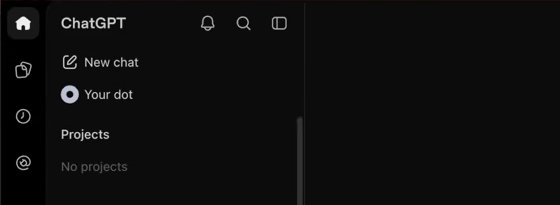
Image: Pat Simmons 1Click Your dot in the sidebar
Open chatgpt.com on a computer. Your dot sits at the top of the sidebar, right under New chat. Click it.
No Your dot entry? Find out why your dot isn't showing up.
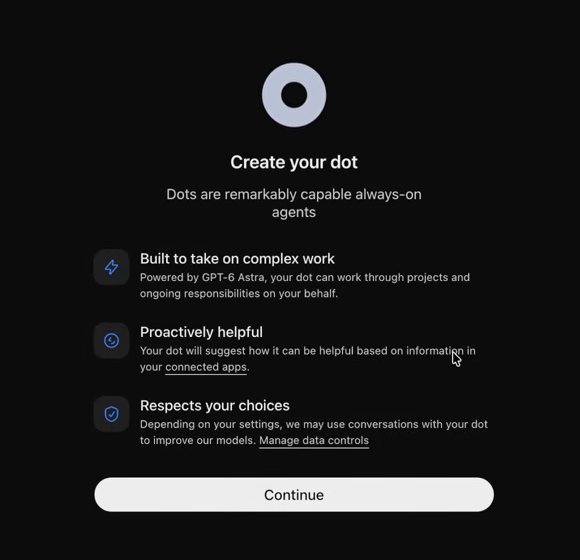
Image: Pat Simmons 2Read what you're getting, then click Continue
The Create your dot screen says three things about a dot before you make one. Click Continue.
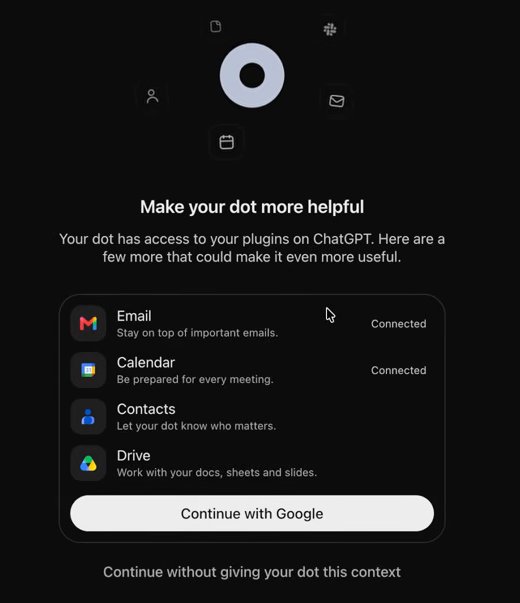
Image: Pat Simmons 3Choose which Google apps to connect, or skip
Make your dot more helpful offers four Google apps: Email, Calendar, Contacts and Drive. Click Continue with Google to connect them, or Continue without giving your dot this context to skip.
Once an app is connected, your dot reads it without being asked, to look for ways to help. Connect what you're happy for it to read. What your dot can see has the detail.
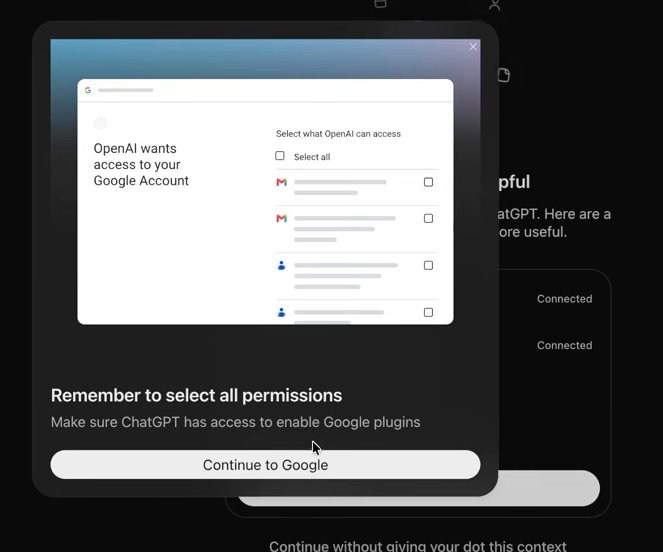
Image: Pat Simmons 4On Google's screen, tick every box
If you chose Google, ChatGPT reminds you to select all permissions before it sends you there. Click Continue to Google, tick every box on Google's own screen, and confirm.
Back in ChatGPT, a small notice says how many plugins were installed, for example "2 plugins installed". Then Setting up your dot shows for a few seconds.
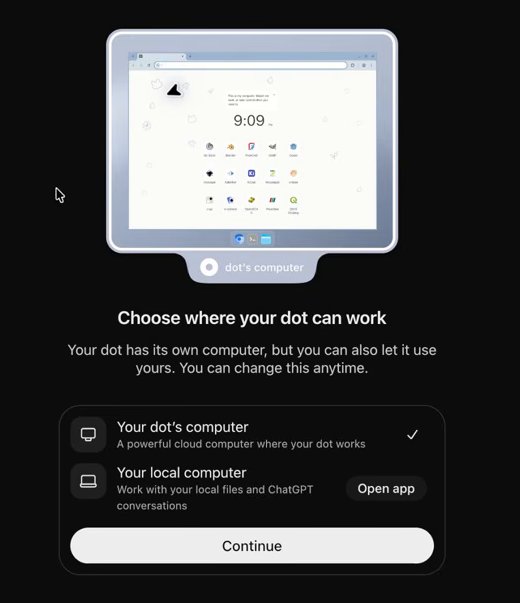
Image: Pat Simmons 5Choose where your dot can work
Your dot gets its own computer in the cloud, and that row is already ticked. Letting it use your computer as well is optional. Click Continue.
Not sure about your own computer? Leave it for now. Let your dot use your computer covers when it's worth it.
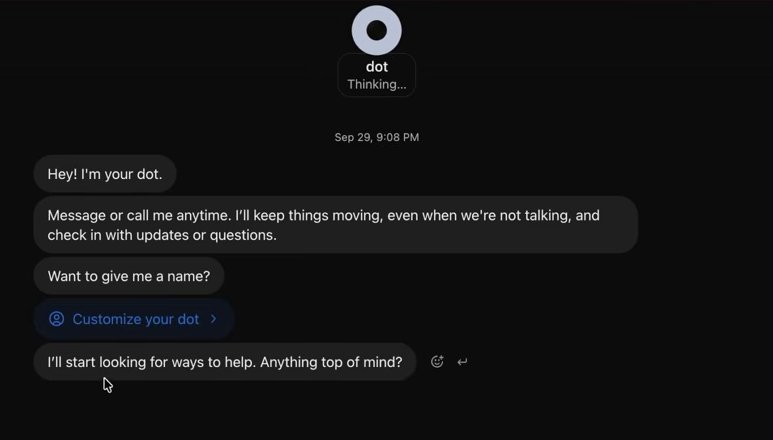
Image: Pat Simmons 6Say hello and give it a name
Your dot writes first. It introduces itself and asks what you want to call it. Type a name and send it.


#Change its name or its look
Once your dot has a name, you can change it, and its picture, at any time. Click Customize your dot in its first messages, or the pencil on its picture in its profile.

- Pick a color, a character or a pet.
- Click the name in the preview to type a new one.
- Click Save. The sidebar, the top of the conversation and the profile all update.
You can also rename your dot by asking it. "Call yourself Juno from now on" is enough.
#Can't see Your dot in the desktop app? Switch it to ChatGPT
Everything so far works the same in the desktop app, with one catch. The app has two modes, ChatGPT and Codex. If the top of the sidebar says Codex and there's no Your dot entry, click Codex and choose ChatGPT.

Your dot now appears under New chat. If the app shows Create your dot again, click Continue: it's the same dot, and the app only needs the next screen from you.
#Two mistakes to avoid
If setup didn't go as shown, check these two.
#Check you've got it
Your dot exists. One question about what it can do right now.
You skipped the Google apps and your own computer. What can your dot do now?
- Nothing until you connect something
- Work on its own cloud computer, and use any apps you'd already connected to ChatGPT
- Only chat, like a normal conversation
Show the answer
Work on its own cloud computer, and use any apps you'd already connected to ChatGPT
A dot always has its own cloud computer with a browser, so it can research, build and keep going while you're away. Apps and your own computer add reach. They aren't required.
A dot always has its own cloud computer with a browser, so it can research, build and keep going while you're away. Apps and your own computer add reach. They aren't required.
#Next step
Your dot is set up and waiting. Give it something to do, or run a practice first day in the simulator before you hand over a real job.
Can I have more than one dot?
Each person gets one dot.
- Rebuilt around the real setup screens.
- First published.
Get the Dots cheat sheet
One page with the essentials, plus new guides as they are published. Free.
You're in. Your cheat sheet is ready. Download the PDF

Sources
6
- OpenAI Help Center: Getting started with your dot help.openai.com
- OpenAI docs: Get started with your dot learn.chatgpt.com
- OpenAI docs: Connect computers and apps to your dot learn.chatgpt.com
- OpenAI docs: Control your dot learn.chatgpt.com
- OpenAI Help Center: Dots privacy, security, and safety FAQs help.openai.com
- Pat Simmons on YouTube: screenshots of the setup screens youtube.com