Your dot's cloud computer: watch it, take over, sign it in
Every dot has its own computer in the cloud. Open it from the profile, take over the mouse, sign it in to a website privately, and handle sites that block it.
Last verified
On this page
Every dot has a computer of its own in the cloud, with its own browser, files and website logins. Your dot works there while your devices are off, and you can open it to watch or take the mouse.
#Three machines, three sets of logins
Start with where the work happens. Three machines are involved, and each keeps its own logins.
Your dot's browser starts signed out of everything, whatever your own browser is signed in to.
#Open it, take over, hand back
Now look at the cloud computer itself. You open it from your dot's profile.
Watch your dot's computer and take the mouse
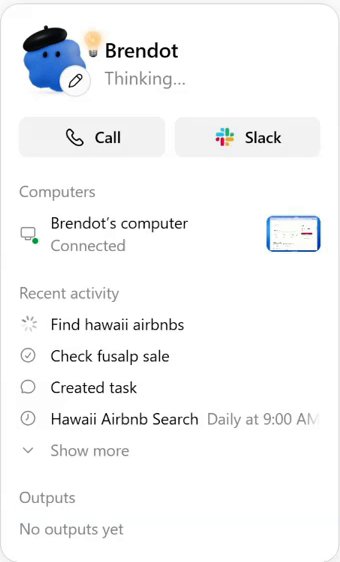
Image: Brendan Jowett 1Open your dot's profile and click its computer
Click your dot's name or picture at the top of the conversation. Under Computers, click the row named after your dot.
- The computer is named after your dot.
- Its dock: a browser, a terminal and a file manager.
- Who's driving right now.
Image: Brendan Jowett 2Watch
The computer opens beside your conversation: a real desktop with a browser, a terminal and a file manager. Under it, a line says who's driving. Watching changes nothing.
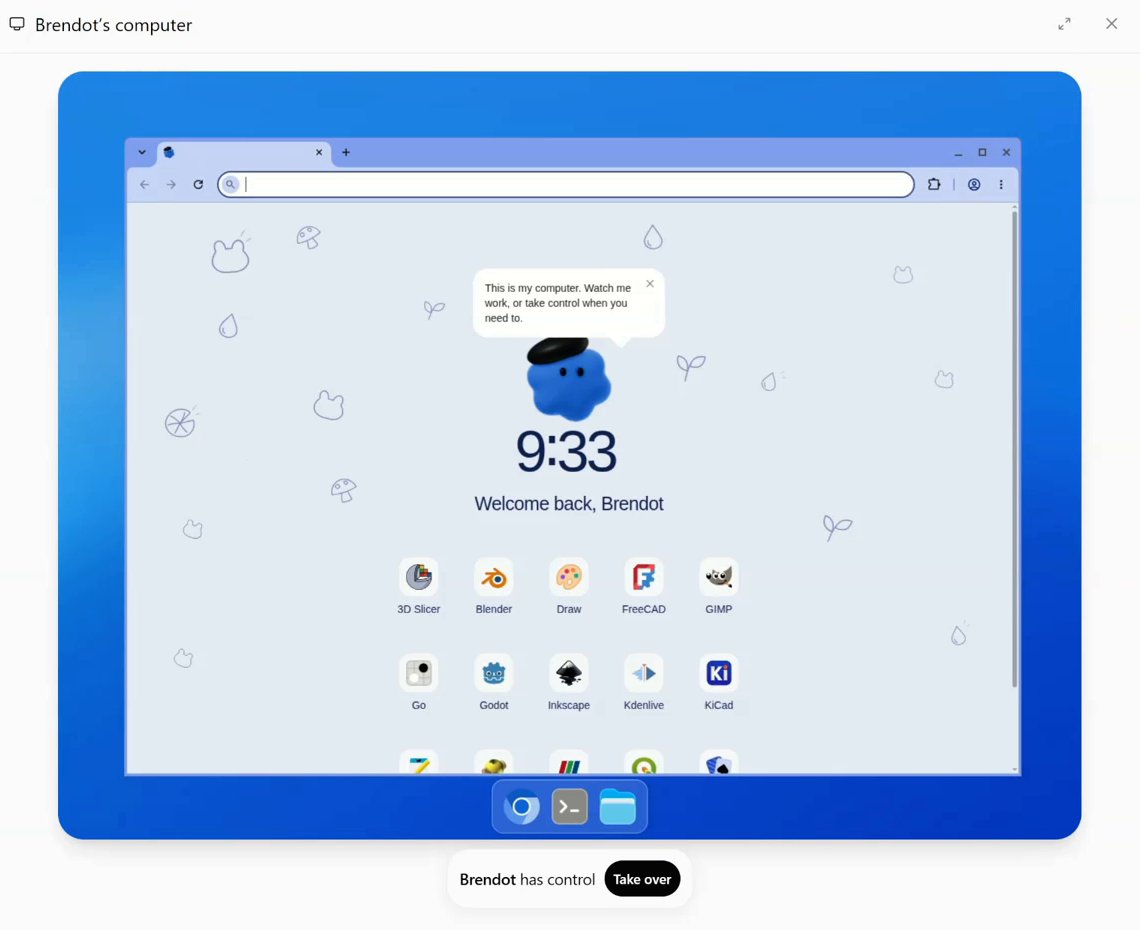
Image: Brendan Jowett 3Click Take over
Click Take over. There's no confirmation, and your mouse and keyboard now work inside your dot's screen.
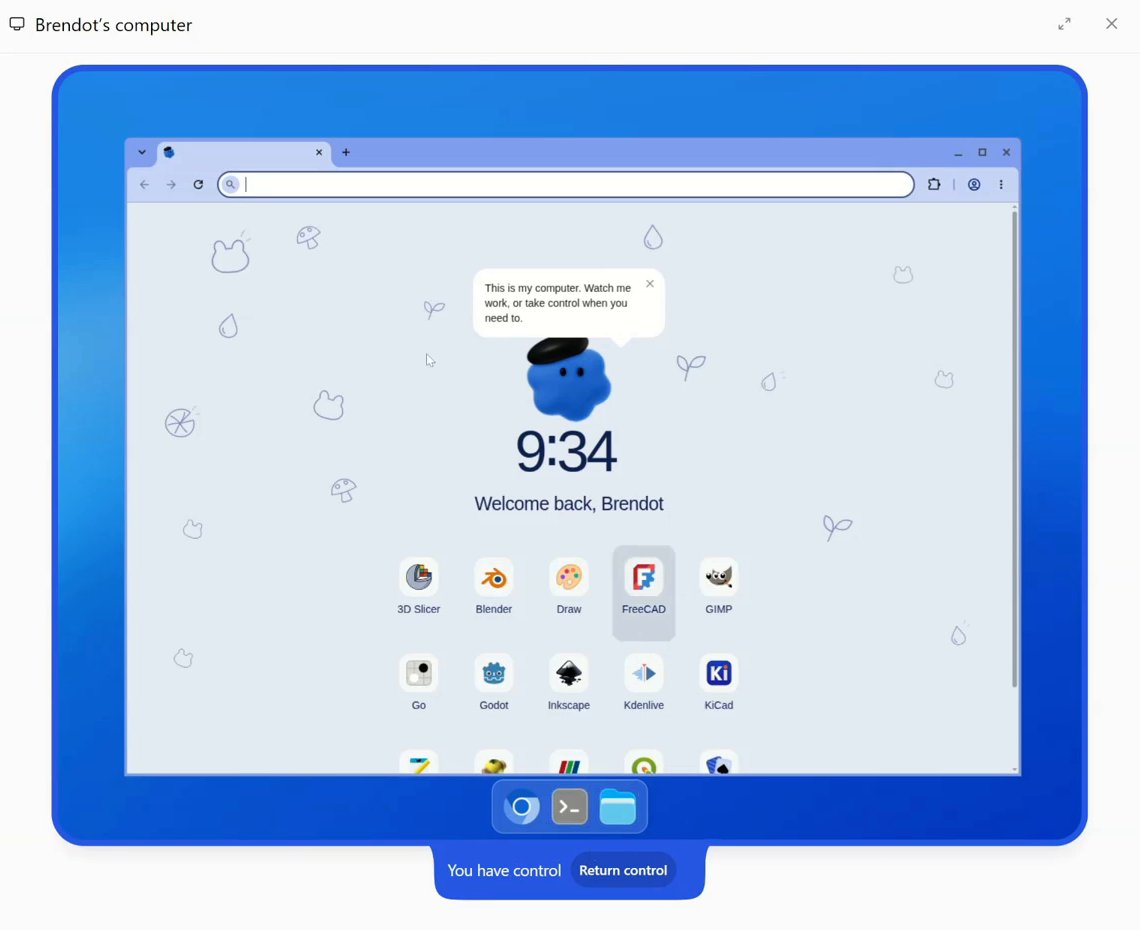
Image: Brendan Jowett 4Do your part, then click Return control
The bar reads You have control. When you're done, click Return control and your dot carries on from where you left the screen.


#Where your password goes
Sooner or later your dot reaches a site that needs a login. It never asks for the password in the chat. Step through what happens instead.
- Your dot reaches a login page in its browser and stops.
- It asks you to sign in.
- You type your password into a private form. Your dot is paused while you do.
- The form sends it straight to the browser. It never passes through your dot.
- The site lets the browser in, and your dot carries on signed in.
The form is the only protected route. A password typed into a message is readable by your dot like any other text, so keep it out of the chat.
#Sign in when your dot asks
On screen, that exchange is two clicks and a form.
Sign your dot in to a website
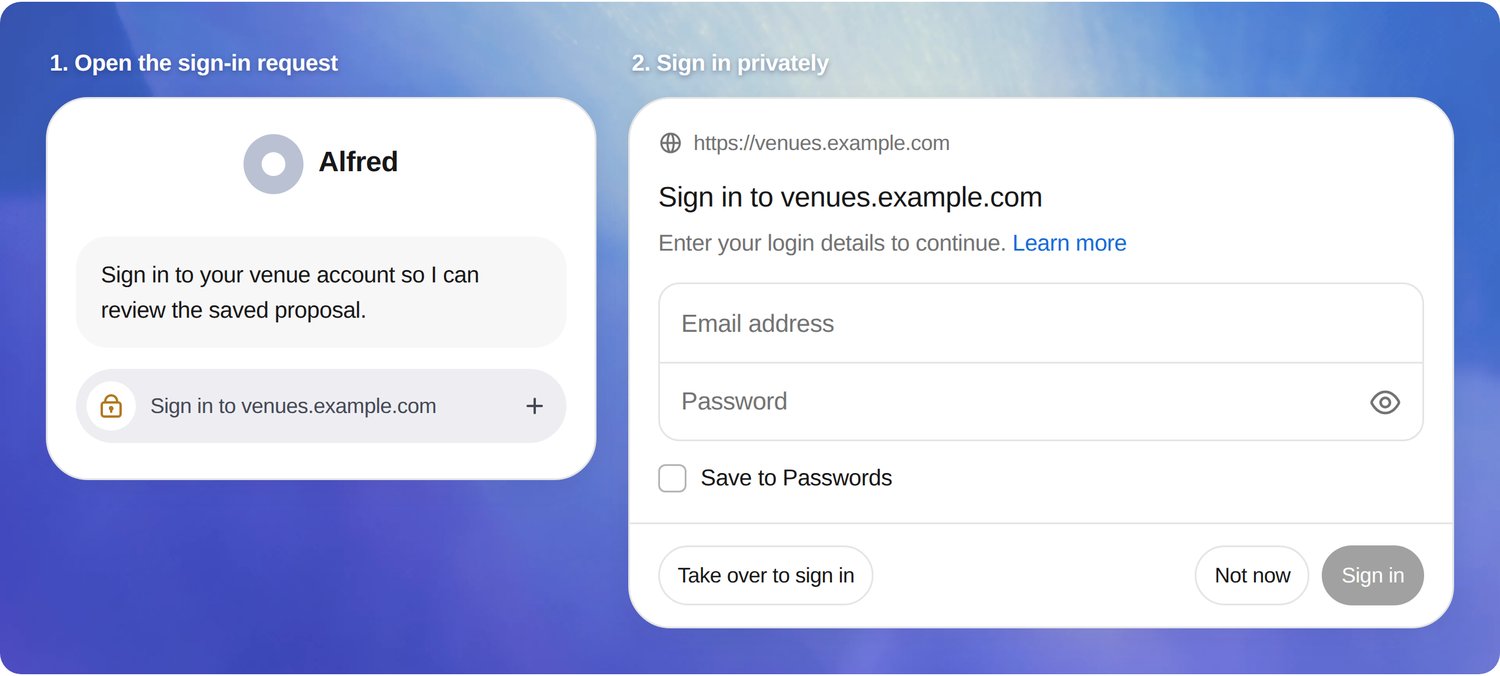
Image: OpenAI 1Open the sign-in request
Your dot says what it needs the site for and puts a sign-in row under its message. Click the row.
- Save to Passwords keeps the login for next time. It's optional.
- Take over to sign in opens the browser so you can log in on the site yourself.
Image: OpenAI 2Type your details and click Sign in
Enter your email and password, plus any code the site sends you, and click Sign in.
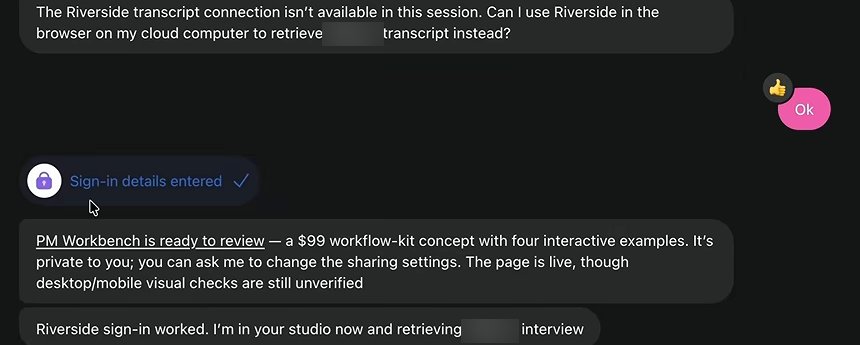
Image: Peter Yang 3Check for the chip
A chip in the conversation reads Sign-in details entered, and your dot tells you it's in. It stays signed in until you sign out or the site ends the session.


If you saved the login, the next sign-in on that site is a one-click question, Use this saved account? A saved login is never used without it.
#When a site blocks your dot's browser
Signing in doesn't help with every site. Some refuse browsers that run in the cloud, and your dot tells you when it hits one.

- The page is refused before any login.
- Taking over doesn't help. It's the same browser.
- Ask your dot to try the site from your own computer. That's a different browser, with your logins in it.
- For a CAPTCHA, your dot asks before it solves one. Answer yes or no in the chat.
- Your dot won't build a way round a block, and it says so if you ask.
#Check yourself
One question before you move on.
You're signed in to your bank on your laptop. You ask your dot to download last month's statement. What happens?
- It downloads the statement, because you're already signed in
- It reaches the bank's login page and stops to ask you
- It reads the password your browser saved
Show the answer
It reaches the bank's login page and stops to ask you
Your dot opens the bank in its own browser, where nobody has signed in yet. It asks you, and you sign it in through the private form.
Your dot opens the bank in its own browser, where nobody has signed in yet. It asks you, and you sign it in through the private form.
#Next step
Your dot's own computer covers most jobs. For the rest, give it yours.
Does my dot keep working when my laptop is closed?
Yes. Work on its cloud computer carries on while your devices are off. Only jobs that need your own computer wait for it.
Should I keep files on the cloud computer?
Treat it as your dot's workbench. Ask your dot to save anything you care about as a file in its Outputs, or to a connected app such as Google Drive, so you can reach it without opening the computer.
What's installed on it?
It's a Linux desktop with a browser, a terminal, a file manager and fifteen programs on its start page, including Blender, GIMP and Inkscape. Its working folder is /workspace.
- Rebuilt around the real screens, with the three-machines chooser and the sign-in drawing.
- First published.
Get the Dots cheat sheet
One page with the essentials, plus new guides as they are published. Free.
You're in. Your cheat sheet is ready. Download the PDF
Sources
8
- OpenAI docs: Connect computers and apps to your dot learn.chatgpt.com
- OpenAI docs: Meet dots (the sign-in request and form) learn.chatgpt.com
- OpenAI: How we build safety, security, and privacy into dots (secure sign-in, the saved account prompt) openai.com
- OpenAI Help Center: Dots privacy, security, and safety FAQs help.openai.com
- OpenAI Help Center: Getting started with your dot help.openai.com
- Brendan Jowett on YouTube: screenshots of the cloud computer and taking over youtube.com
- Pat Simmons on YouTube: screenshot of a site blocked in the cloud browser youtube.com
- Peter Yang on YouTube: screenshot of the Sign-in details entered chip youtube.com