


Are we still on for Thursday?
How to connect ChatGPT Dots to Slack
Add your dot to Slack from its profile: click Slack, pick a workspace, click Allow. Then DM it or mention it in a thread. Who it answers, and prompts to copy.
Last verified
On this page
You add your dot to Slack from its profile in ChatGPT: click Slack, pick your workspace, and click Allow on Slack's page. Your dot then shows up in Slack as a member you can message directly or mention in a thread.
#What you can hand over from Slack
Once your dot is in Slack, you can give it work without opening ChatGPT:
- A quick ask, in a direct message.
- A thread to summarize, answer or act on. Mention your dot inside the thread.
- A channel to watch, on a schedule you set.
- A bigger job. A request in Slack can start work on your dot's cloud computer, and files come back in the thread.
This is how it arrives: a member of your workspace with its own name and badge.
- The handle is your first name, a hyphen and your dot's name: alex-juno, say.
- The AGENT badge marks every post as coming from a dot.
Its first message there states the rule for channels: "In shared conversations, I'll respond to you, and everyone there can see my replies."
#Connect your dot to Slack
Connecting takes five clicks on a computer. You need a dot (create one first) and a Slack workspace that lets you add apps.
Walkthrough
Connect your dot to Slack
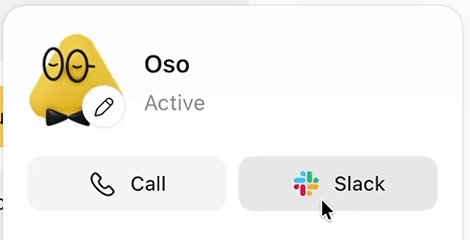
Image: Code with Beto 1Click Slack in your dot's profile
Click your dot's name at the top of its conversation to open its profile. Slack sits next to Call.
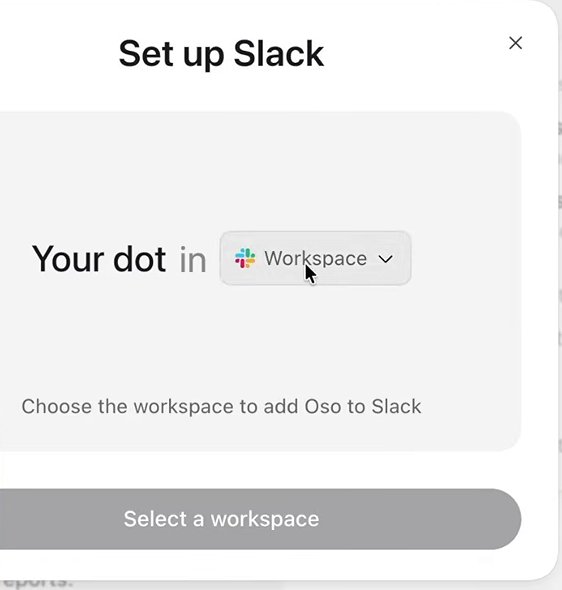
Image: Code with Beto 2Pick your workspace
Set up Slack opens. Click the workspace menu and choose the Slack workspace your dot should join.
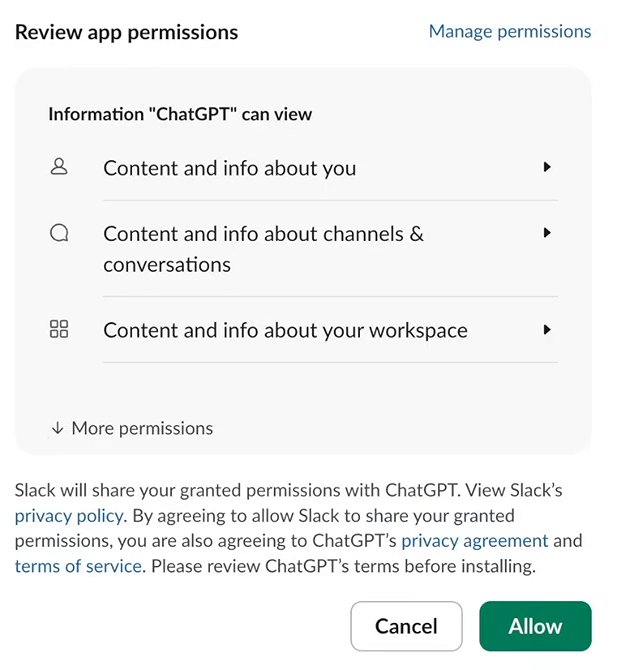
Image: Code with Beto 3Click Allow on Slack's page
Your browser opens Slack's page Allow the "ChatGPT" app to access Slack. Slack calls the app ChatGPT, not Dots. Read what the app can view, then click Allow.
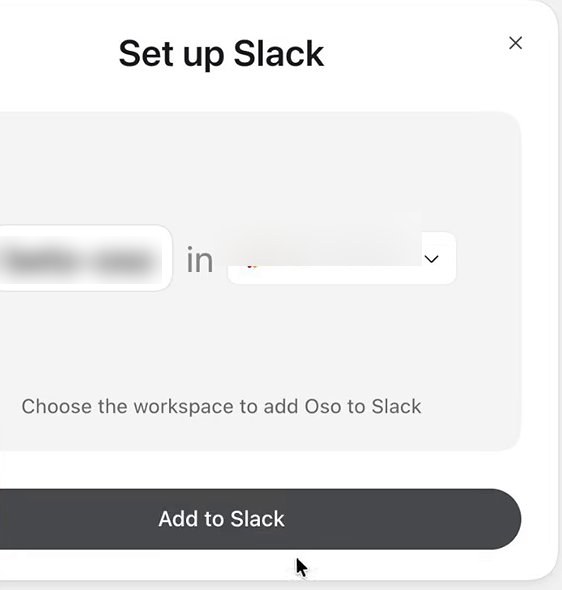
Image: Code with Beto 4Click Add to Slack
Back in ChatGPT, the dialog shows the handle your dot will have in Slack: your first name, then your dot's name. Click Add to Slack.
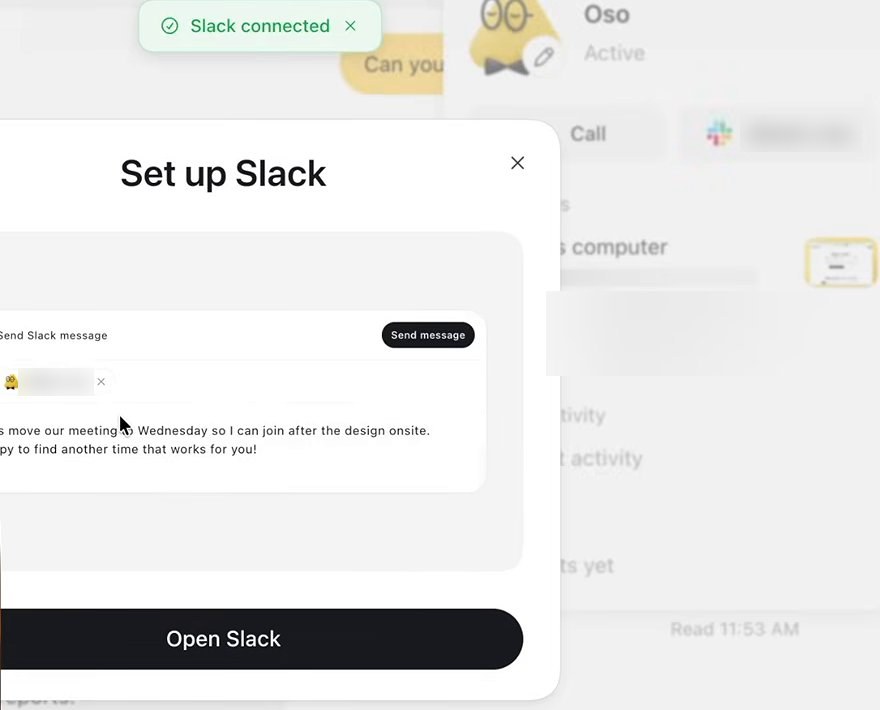
Image: Code with Beto 5Click Open Slack
A green notice reads Slack connected, and the button changes to Open Slack. In Slack, your dot is listed under Agents & apps with its first message waiting.
Reply to that first message with anything. Your dot answers within a few seconds, usually in a thread under your message. To use it in a channel, add it the way you'd add a person, then mention it with @ in a thread.
#Who does your dot answer?
In a direct message it's only you and your dot. A channel has other people in it, and that's where the rules matter. Play each situation.
#Recipes
Three jobs worth handing over from Slack. Swap in your own channel names.
A job to hand over
Catch up on a thread
For a long thread you weren't in. Your dot reads what everyone wrote there and answers in the thread.
Prompt
@[YOUR-DOT] read this thread and reply here with three things: what was decided, what's still open, and who's waiting on me.You get back
A short reply in the thread that everyone in it can read.
The next one runs on a schedule, so your dot checks without being asked each time.
A job to hand over
Watch a channel for unanswered questions
For a channel where questions pile up. The prompt names the channel, what to watch for and when to tell you.
Prompt
Check [#CHANNEL] each weekday at 9 AM [YOUR TIME ZONE] for the next four weeks. Message me directly when a question there has gone a full day without an answer. Draft a reply for my review, but don't post it. Confirm the schedule.You get back
A direct message when something needs you, with a draft reply. The task appears under Scheduled in ChatGPT.
And one to send once, so Slack stays quiet.
A job to hand over
Decisions in Slack, progress in ChatGPT
For when routine updates are drowning out the ones that need you.
Prompt
Keep routine progress updates in ChatGPT. Message me in Slack only when you need a decision from me or a deadline is at risk. Before you post anything in a shared channel, check with me privately about what is OK to share.You get back
A direct message in Slack only when there's something to decide.
#What your dot can and can't do in Slack
Put together, the limits look like this.
| It can | It can't |
|---|---|
| Answer your direct messages and your mentions | Take work from anyone but you |
| Use other people's messages in a thread you bring it into | Reply in a private channel it hasn't been added to |
| Use what you told it in ChatGPT | Share what you told it privately without your permission |
| Post files and results in the thread | Start watching a channel because it was added to it |
| Start work that shows up in ChatGPT under Recent activity | Copy your Slack messages into your ChatGPT conversation |
#Fixes
Most snags come from those limits. The commonest: you mention your dot in a private channel it hasn't joined, and Slack answers for it.

Click Add Them, then send your mention again. For the rest:
| What you see | What to do |
|---|---|
| A teammate mentions your dot and nothing happens | Mention it yourself in the same thread. It can read what your teammate wrote |
| Your dot is in a channel and never checks it | Tell it which channel, what to look for and when. Give your dot a job has the pattern |
| The setup won't finish at work | Ask your ChatGPT admin for Use dots and Add dots to Slack, and a Slack owner to approve the ChatGPT app. What admins control |
| Your Slack messages aren't in ChatGPT | Each place shows only what was sent there. Your dot remembers both |
#Check you've got it
One question to finish.
Predict
Sam adds your dot to #design and writes: "@alex-juno summarize this channel every morning." What happens?
- Your dot starts a daily summary
- Your dot asks Sam to confirm the schedule
- Nothing
Show the answer
Nothing
Two rules apply. Only you can give your dot work, so Sam's mention starts nothing. And being added to a channel sets up no schedule. If you want the summary, ask for it yourself and have your dot confirm the recurring task.
Two rules apply. Only you can give your dot work, so Sam's mention starts nothing. And being added to a channel sets up no schedule. If you want the summary, ask for it yourself and have your dot confirm the recurring task.
Is the dot in Slack a second dot?
It's the same dot you talk to in ChatGPT, with the same memory. Slack gives it a second place to hear from you.
Is this the same as @ChatGPT in Slack?
@ChatGPT is a separate, shared assistant that an admin sets up for a Business or Enterprise workspace. Anyone in an enabled conversation can ask it, and it knows nothing about you. Your dot has its own handle with an AGENT badge, your memory and your app connections, and takes work only from you.
Can I use Microsoft Teams in place of Slack?
Not yet, for most people. See Dots and Microsoft Teams.
- Rebuilt around the real connection screens, with a practice channel and recipes.
- First published.
Get the Dots cheat sheet
One page with the essentials, plus new guides as they are published. Free.
You're in. Your cheat sheet is ready. Download the PDF

Sources
11
- OpenAI docs: Message your dot learn.chatgpt.com
- OpenAI docs: Manage dots permissions and capabilities (admin guide) learn.chatgpt.com
- OpenAI Help Center: Manage dots in ChatGPT workspaces help.openai.com
- OpenAI Help Center: Getting started with your dot help.openai.com
- OpenAI docs: Tasks and memory learn.chatgpt.com
- OpenAI Help Center: Dots privacy, security, and safety FAQs help.openai.com
- OpenAI Help Center: ChatGPT with Slack and Microsoft Teams help.openai.com
- OpenAI Help Center: Using @ChatGPT in Slack and Microsoft Teams help.openai.com
- OpenAI docs: Set up and manage @ChatGPT in Slack and Microsoft Teams learn.chatgpt.com
- OpenAI: Introducing dots openai.com
- Code with Beto on YouTube: screenshots of connecting a dot to Slack youtube.com